
Insert data from the dashboard.
The console gives you two ways to put rows into a table without writing any application code: Import CSV in the schema designer, for a file's worth of data, and an INSERT in the query workbench, for one row at a time.
Everything here continues from Create a schema in the dashboard and writes into that page's table, shop.orders.
The console has no spreadsheet-style row editor and no "add row" button on the table page - so a single row goes in as a one-row INSERT in the workbench. For programmatic writes at volume, the dedicated row endpoints are still the fastest path; see Insert data for the cURL, Python, TypeScript and Go versions.
Variant A - import a CSV.
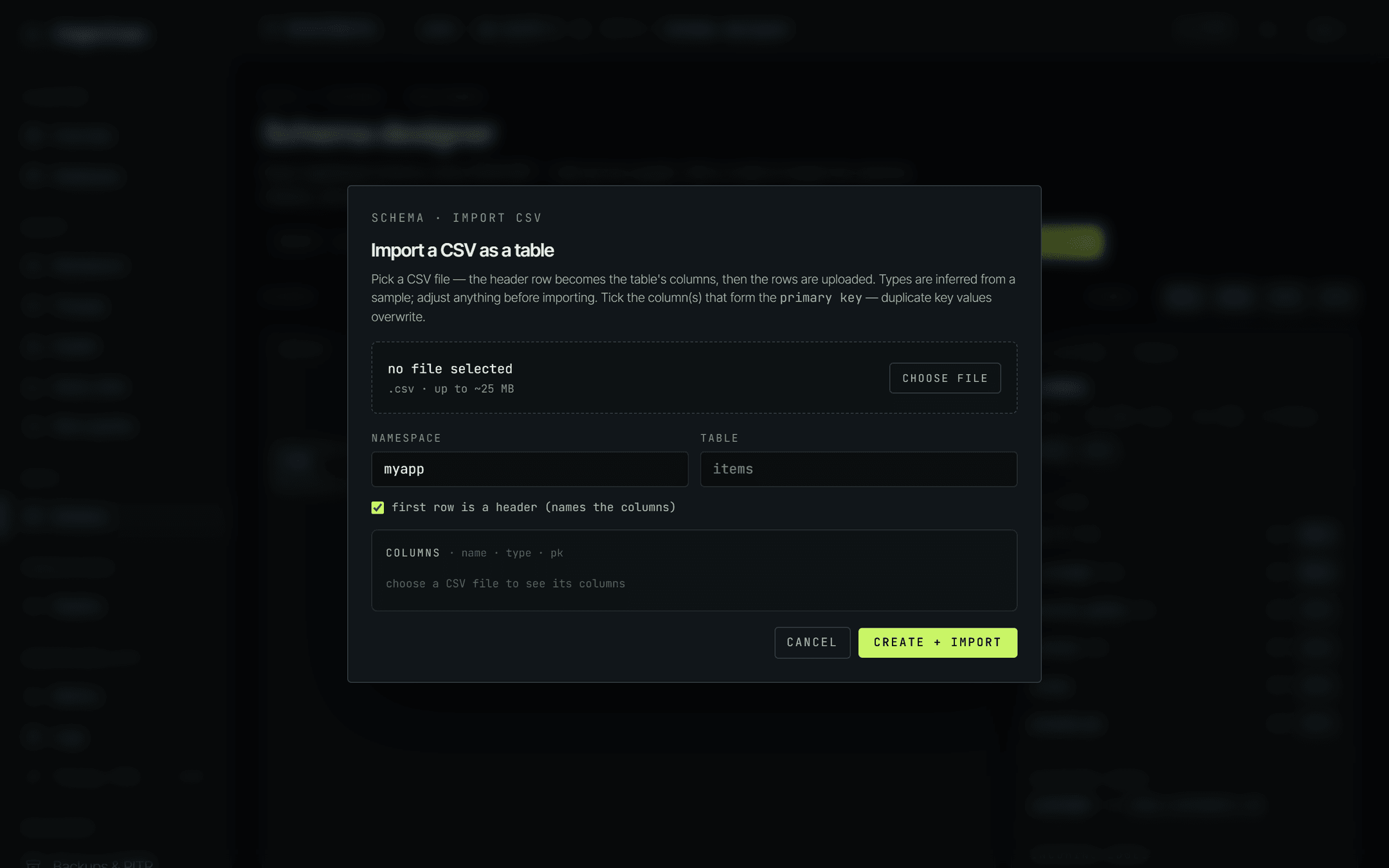
Open Data → Schema and click Import CSV. This one dialog does both jobs: it reads the header to build a table, then uploads the rows into it. If the table already exists, the rows are appended to it instead.
A plain comma-separated file with a header row. The demo import for shop.orders starts like this:
id,customer,amount_cents,status,notes,placed_ms
ord_3000,cus_481,1200,paid,,1753660800000
ord_A001,cus_9930,2111,paid,gift wrap,1753660801500
ord_H002,cus_2214,3022,paid,,1753660803000
Blank cells - the empty notes values above - are fine for columns that aren't required.
- Choose file. The dialog reads a sample of it immediately and lists the columns it found, with a type guessed for each.
-
Set the namespace and table. The table name is pre-filled from the filename, so
orders.csvbecomesorders- change either one. -
Leave first row is a header ticked if your file has one. Untick it and the columns are named
col_1,col_2and so on, and every line is treated as data. - Fix the column list. Rename anything, correct any type the guess got wrong, and tick the column(s) that form the primary key - the first column is pre-ticked.
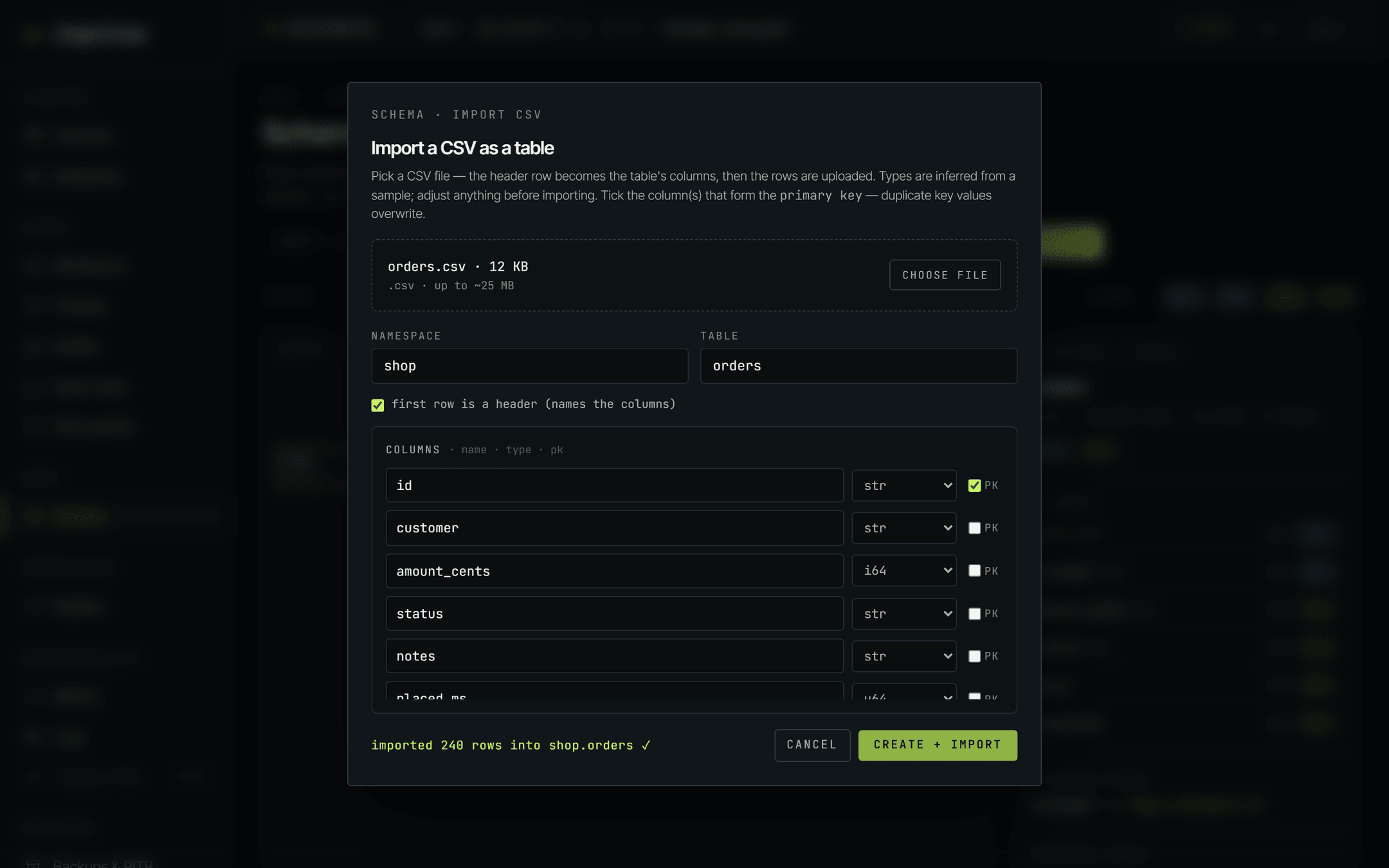
- Create + import. The status line walks you through
creating table…, thenuploading rows….
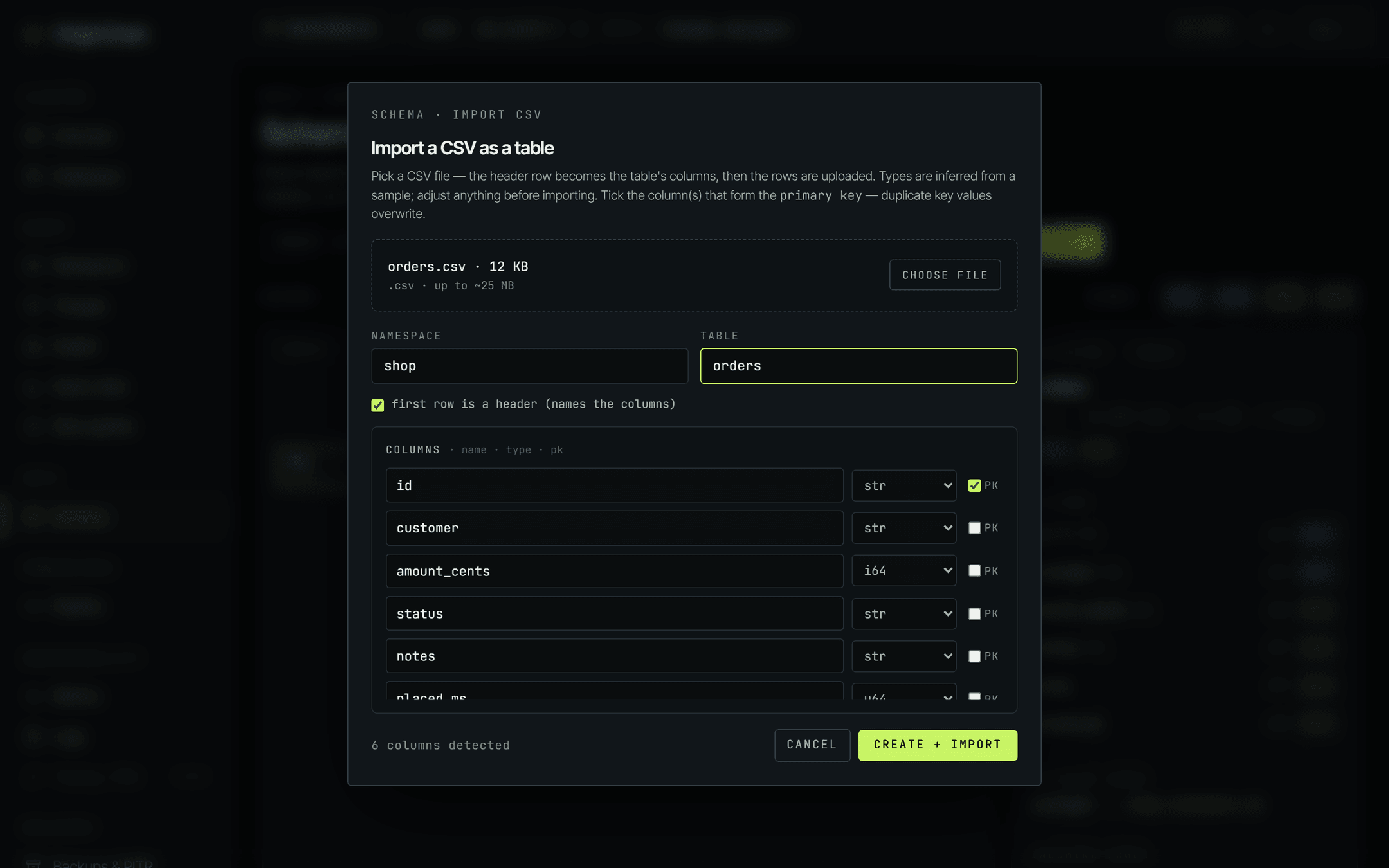
The dialog reads the start of the file - a sample, not the whole thing - and picks per column: bool if every value is true/false; i64 if every value is a whole number; f64 if the values are numeric and at least one carries a decimal point or exponent; otherwise str. Values with leading zeros - postcodes, padded ids like 007 - deliberately stay str so the zeros survive.
Because it's a sample, the guess can be wrong for a column whose interesting values appear late in the file - and it has no way to tell i64 from u64. In the demo, placed_ms comes back as i64 and is switched to u64 by hand. Read the list before you import.
Column names are cleaned up too: anything outside letters, digits and underscores becomes an underscore, so a header like Order Total arrives as Order_Total. Rename it in the list rather than living with that.
When it's done, the status line reports exactly how many rows the engine took, the dialog closes, and the canvas reloads with the table on it.
When the import pushes back.
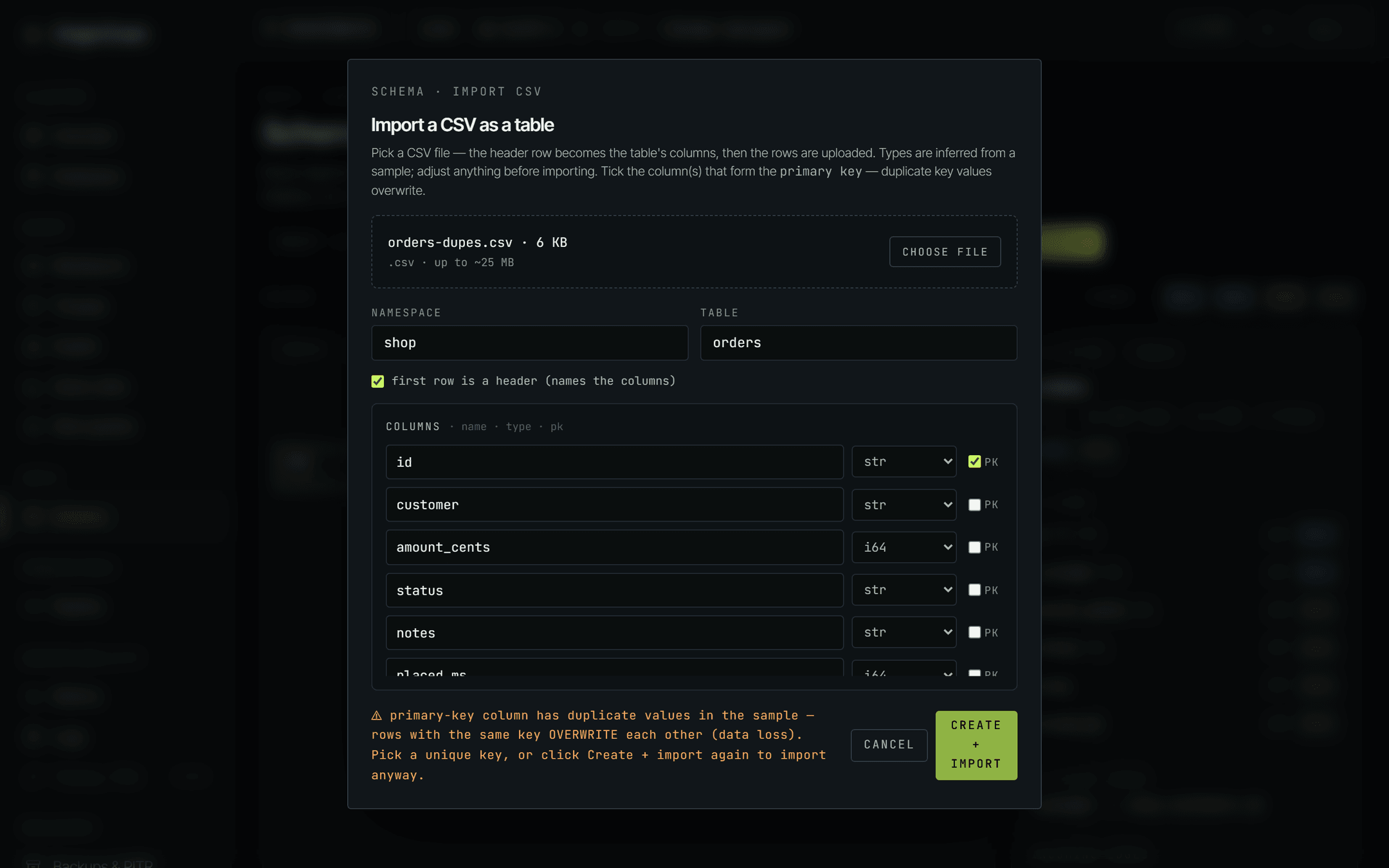
The one to understand is the duplicate primary key warning, because without it an import would look like a success while quietly losing rows.
Writes are keyed on the primary key, and a second row carrying a key that already exists overwrites the first. So before uploading, the dialog checks the sample it already read for duplicate key values. If it finds any, it stops and tells you - once. Fix the key and it re-checks; click Create + import a second time without changing anything and it takes you at your word and imports anyway.
select a running instance first- pick one in the top bar. Nothing can be imported without a target.choose a CSV file firstandenter a table name- the two required inputs.column 3 has no name- you cleared a name in the list.duplicate column name: status- two columns ended up with the same name, often after two similar headers were cleaned up.tick at least one primary-key column- you unticked the pre-ticked one without ticking another.could not read any rows from the file- the file is empty, or it isn't really comma-separated.
Anything the engine itself rejects - a value that doesn't fit its column's type, a missing required column - comes back in red on the same status line, in the engine's own words.
Variant B - INSERT in the workbench.
For one row - a fixture, a correction, a quick test - go to Query → Workbench.
- Check the instance in the top bar is the one you mean. It's chosen once, globally, and every console page follows it - there's no per-page instance picker, and no token to paste: the console is already signed in.
- Leave the language selector on SQL. The other language tabs are covered in Query from the dashboard.
- Type the statement. The left rail lists the tables on the instance with their columns - clicking one drops its name into the editor.
- Click Run.
INSERT INTO shop.orders (id, customer, amount_cents, status, notes, placed_ms)
VALUES ('ord_7Q2R', 'cus_481', 15400, 'paid', 'expedited', 1753669000000)
An INSERT answers with the row it wrote, so the results pane fills with the row itself - useful confirmation that the values landed as the types you expected, not just that the call succeeded.
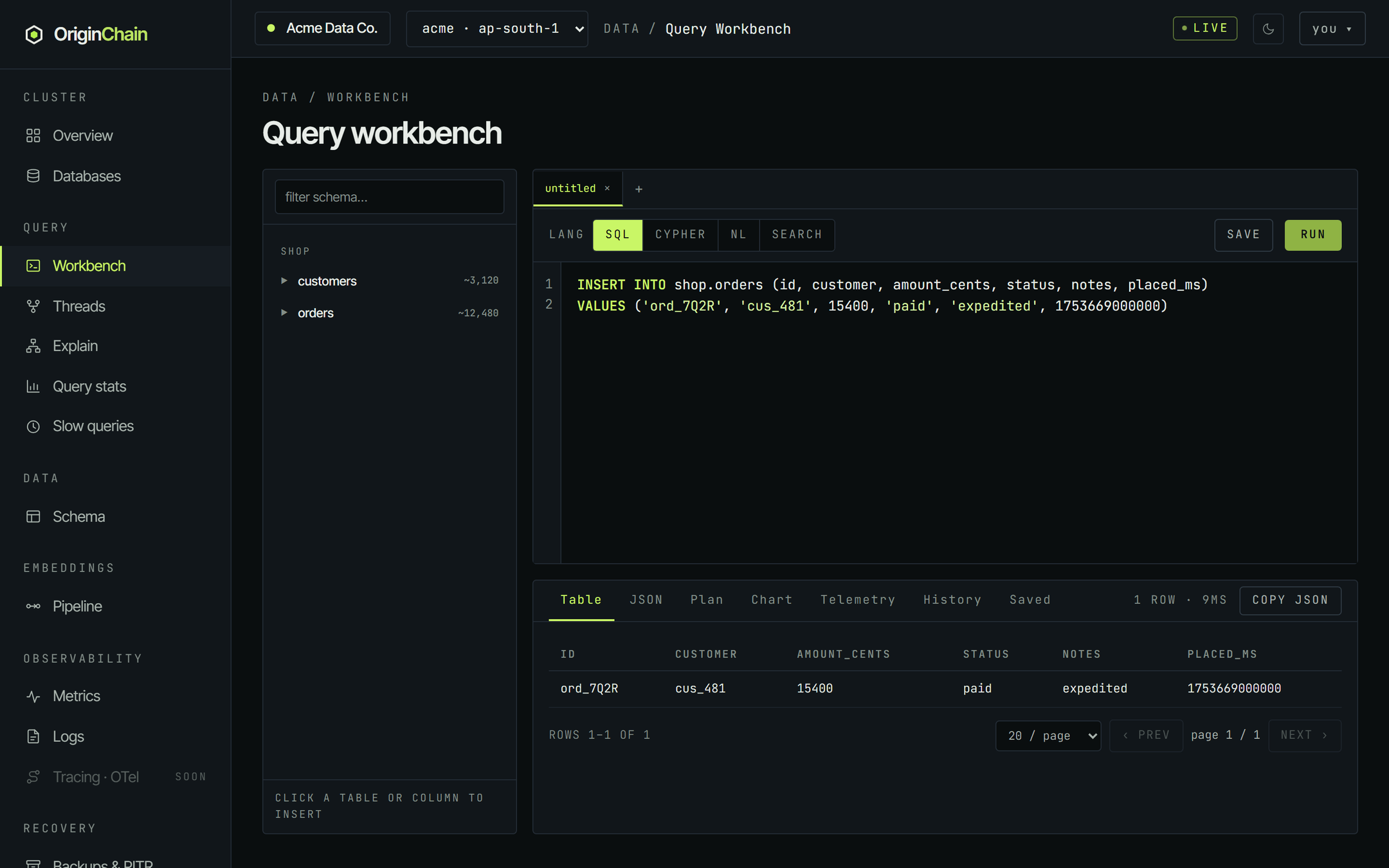
The JSON tab next to Table shows exactly what the engine sent, and Copy JSON puts it on your clipboard:
{
  "kind":   "insert",
  "schema": "shop.orders",
  "rows": [
    {
      "id":           "ord_7Q2R",
      "customer":     "cus_481",
      "amount_cents": 15400,
      "status":       "paid",
      "notes":        "expedited",
      "placed_ms":    1753669000000
    }
  ]
}
Same rule as the CSV path: a write whose primary key already exists replaces that row rather than failing. If you need "fail if it exists" semantics, that's an option on the row endpoints rather than something the workbench exposes - see Insert data. For UPDATE, DELETE and transactions from the same editor, see SQL.
The workbench also keeps a history of what you ran and lets you name and save statements you'll want again - both covered in Query from the dashboard.
A rejected row.
Writes are validated against the schema, so a value that doesn't fit its column is refused rather than coerced. The workbench doesn't editorialise: the meta line flips to error and the results pane prints the engine's message verbatim.
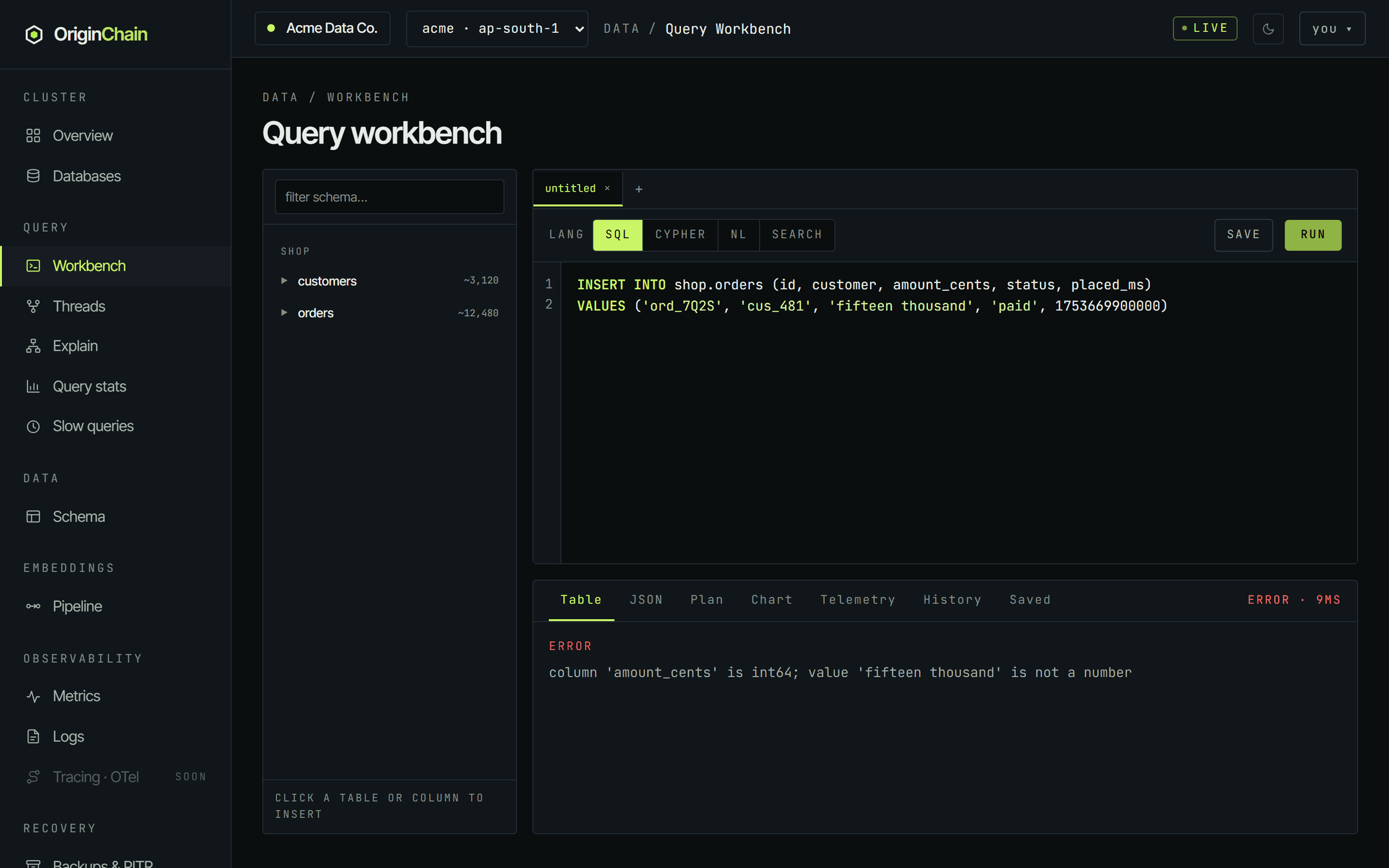
The fix is almost always one of four things:
- Wrong type. Quote text, leave numbers unquoted -
15400, not'15400'. Money as minor units in ani64avoids float surprises entirely. - Unknown column or table. Check the spelling against the left rail, and remember a table is named
namespace.table-shop.orders, never bareorders. - A required column is missing. Every column marked
REQwhen the table was registered has to be present. - A check constraint said no.
amount_cents >= 0means a negative amount is rejected at the write, by design.
The table's exact shape is one click away - open it from Data → Schema and read the Manifest tab. Errors lists the full set of codes and what each one means.
Verify the data landed.
Three checks, in increasing order of effort.
Look at the rows
Open the table from Data → Schema and click the Sample tab. It runs a live SELECT * … LIMIT 10 and renders whatever comes back, with a Refresh button. This is the fastest way to see that your values arrived in the columns you meant, with the types you meant.
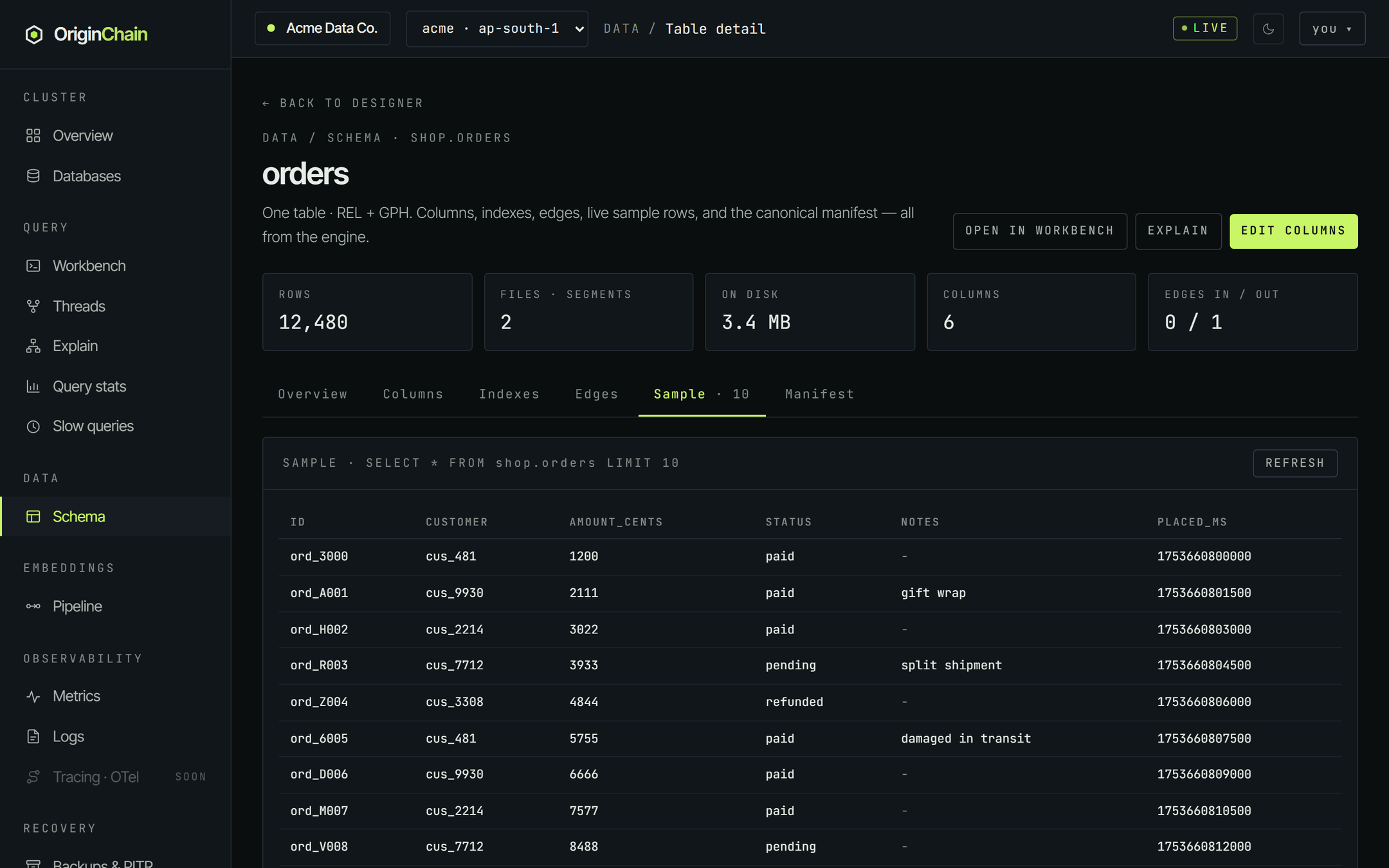
Count them
Back in the workbench:
SELECT COUNT(*) AS orders FROM shop.orders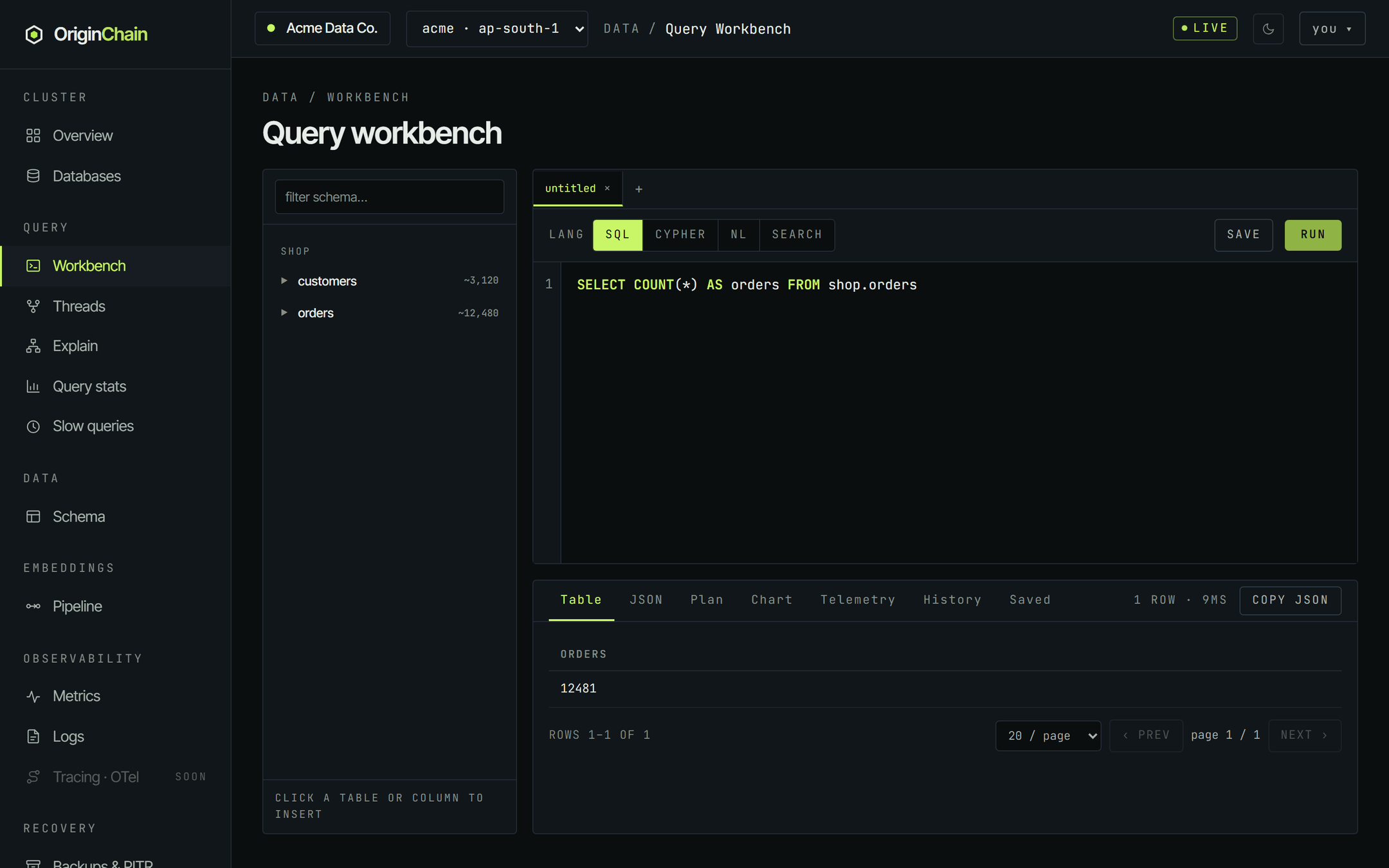
Trust the tiles, after a Recount
The rows tile on the table page, and the count under each node on the canvas, come from a live counter. It's cheap and it's right most of the time, but it can read high after a lot of updates, because updating a row counts like writing one. If the number looks wrong, click Recount in the schema designer toolbar - it recomputes the exact figures and runs off the write path, so it's safe on a busy instance.
Limits worth knowing.
The file picker states its own limits: .csv files, up to about 25 MB. It accepts nothing else - NDJSON and other formats aren't offered by this dialog even though the underlying ingest API handles them. For those, or for anything larger, use the file-ingest endpoint directly from Insert data.
The dialog reports how many rows the engine accepted. If the upload fails partway, the rows already written stay written - and re-running the import is safe precisely because writes are keyed: the same file lands the same rows on top of themselves.
Embeddings aren't table columns, so neither the CSV import nor a SQL INSERT writes them. They go through the vector endpoint, and the exact call - dimension, metric, index family and all - is generated for you on the Vector tab of Index config.