
Create a free account.
Every account can launch one free database - 1 GB of storage on shared compute, with SQL, vector, and full-text search on the same instance. No card required. Five steps take you from signup to a running database with its connection credentials.
Create your account.
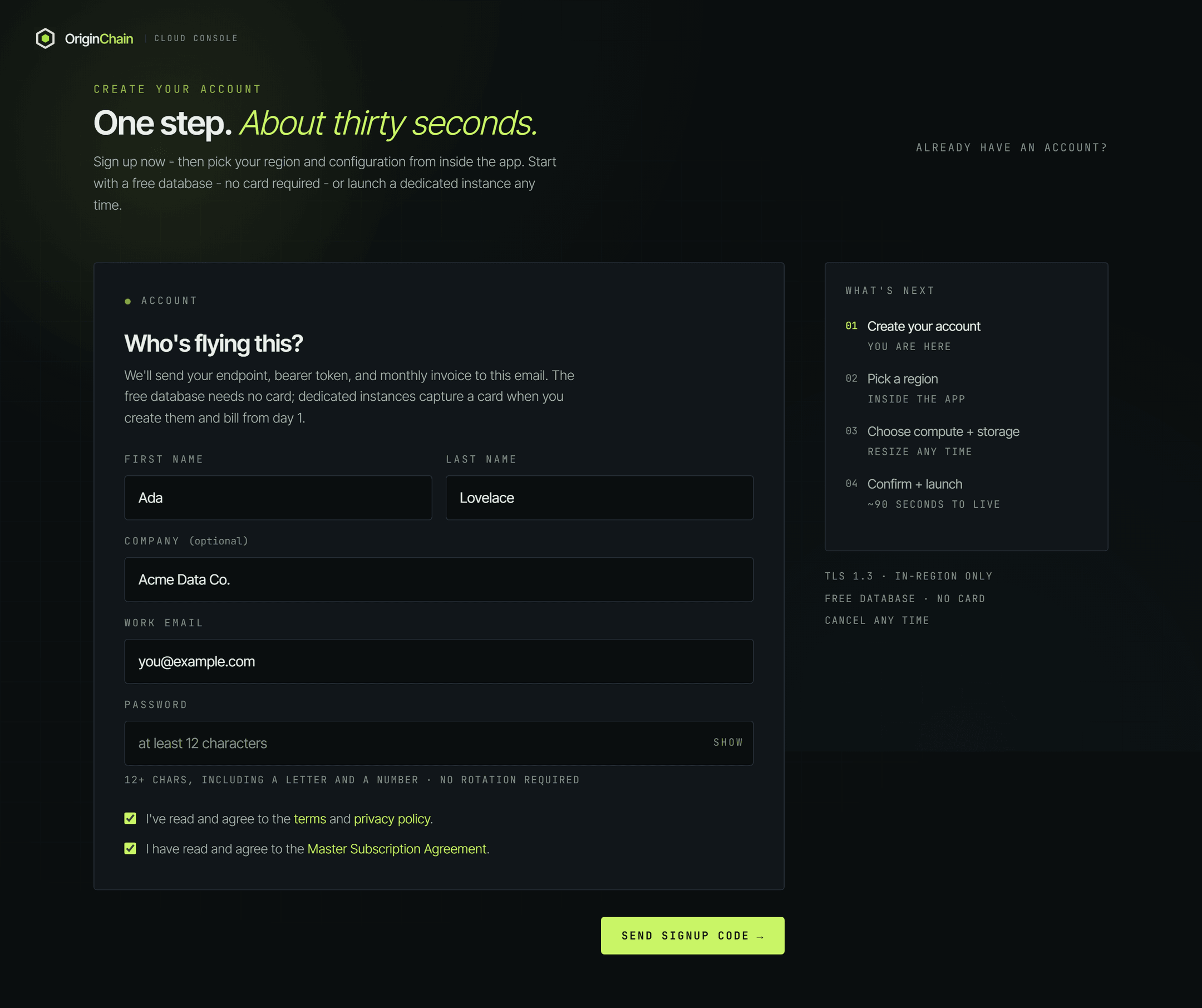
Head to app.originchain.ai/signup. Signup is a single step - fill in:
- Your first and last name, and optionally your company.
- Your work email - the verification code goes here.
- A password - at least 12 characters, with at least a letter and a number.
Tick both agreement checkboxes - the terms and privacy policy, and the Master Subscription Agreement (also linked on the signup page) - then click Send signup code.
We email you a verification code. Enter it on the signup page to finish creating your account.
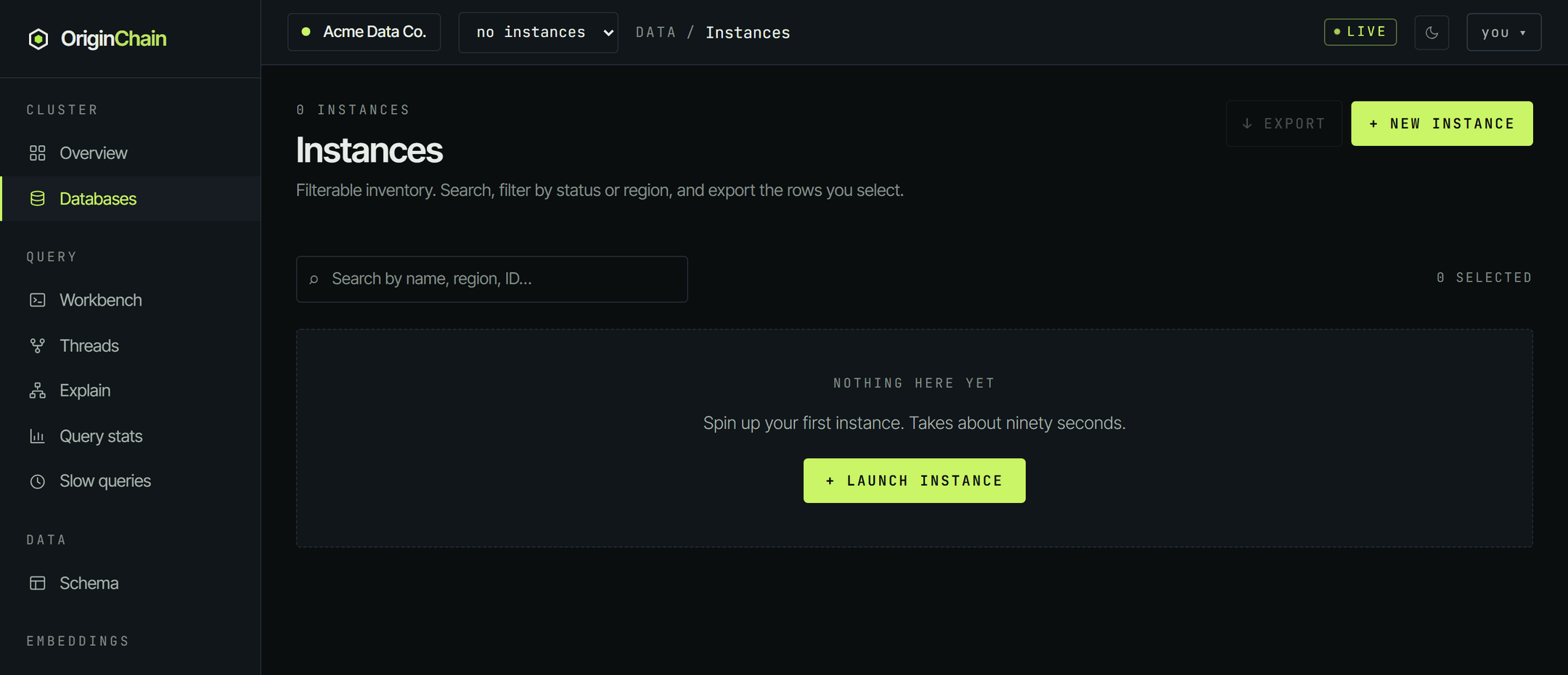
Open Databases and launch an instance.
Sign in and you land in the console. Go to Databases in the sidebar, then click + New instance (on a fresh account the empty state shows a Launch instance button - same thing).
Pick Free and create your database.
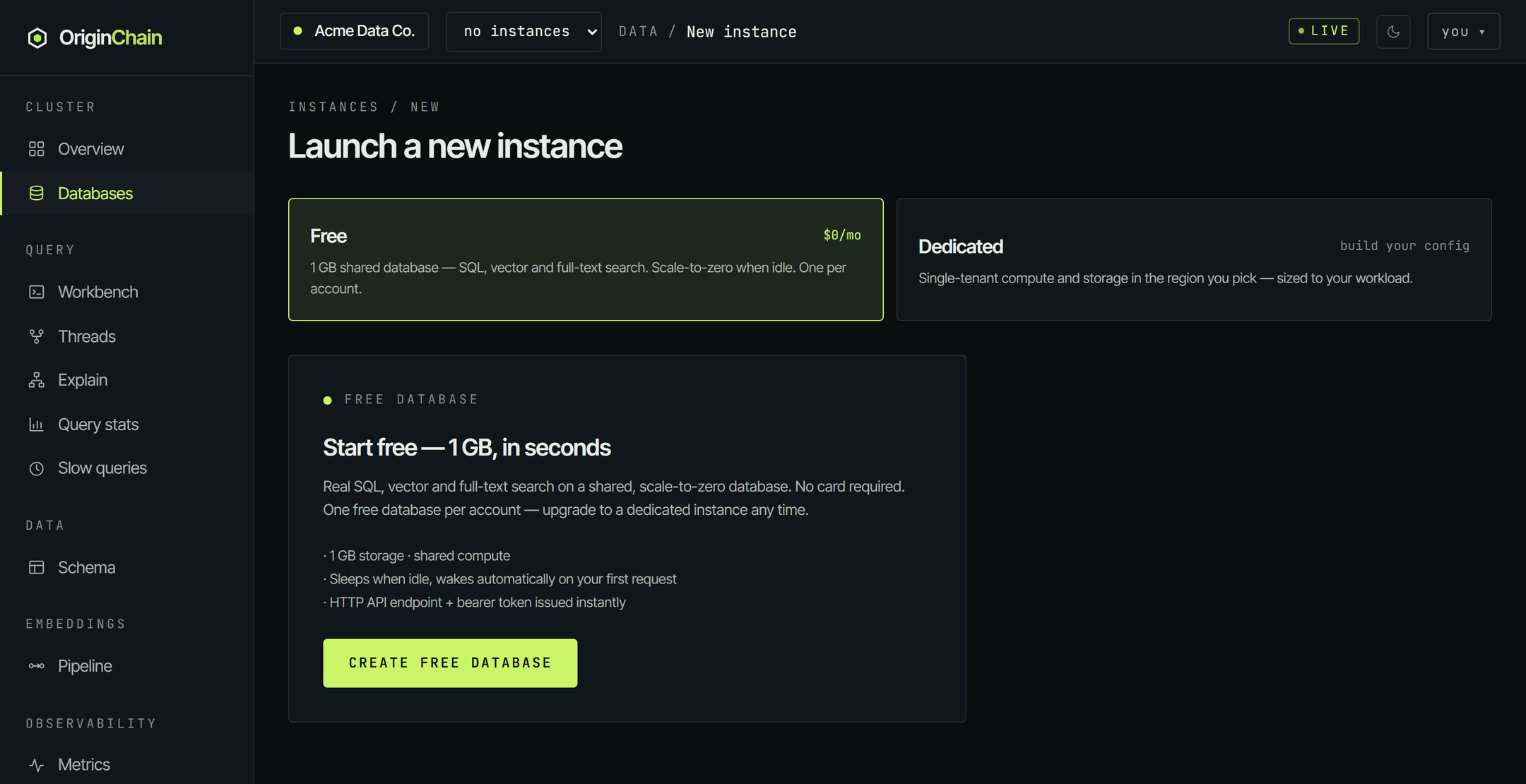
The Launch a new instance page shows two options:
| Option | What it is |
|---|---|
| Free $0/mo | 1 GB shared database - SQL, vector and full-text search. Scale-to-zero when idle. One per account. |
| Dedicated | Build your own configuration on a dedicated instance. See Deploy for how dedicated instances work. |
Pick Free. The Free database panel opens ("Start free - 1 GB, in seconds"). Click CREATE FREE DATABASE.
The free database never asks for a card. You only add payment details if you later launch a dedicated instance.
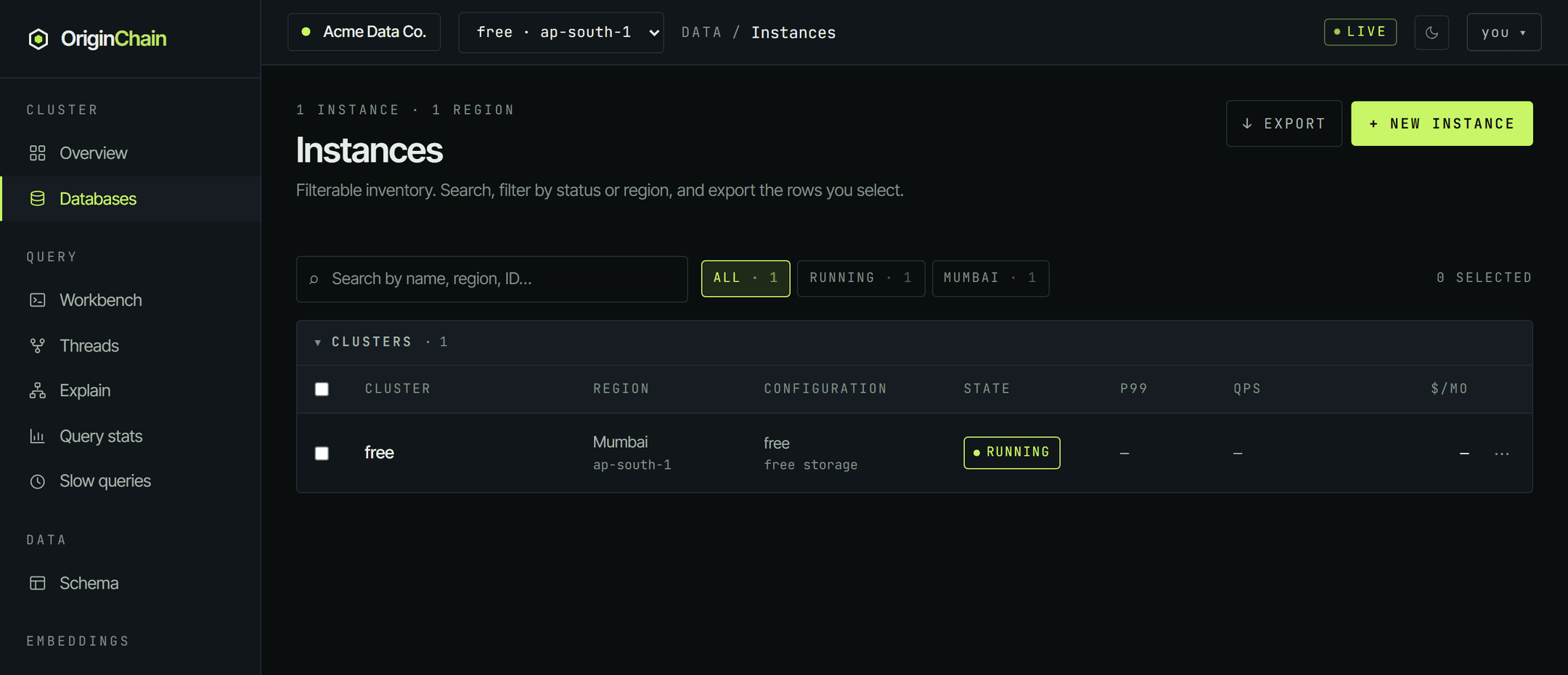
Wait for RUNNING.
Your database appears under Databases with state RUNNING - usually within seconds, at most a couple of minutes.
- 1 GB storage on shared compute.
- Sleeps when idle and wakes automatically on the first request.
- HTTP API endpoint + bearer token issued instantly.
- One free database per account.
- Upgrade to a dedicated instance any time.
Connect and run your first query.
Open the instance and switch to the Connection tab. It has everything a client needs: your endpoint URL and your bearer token.
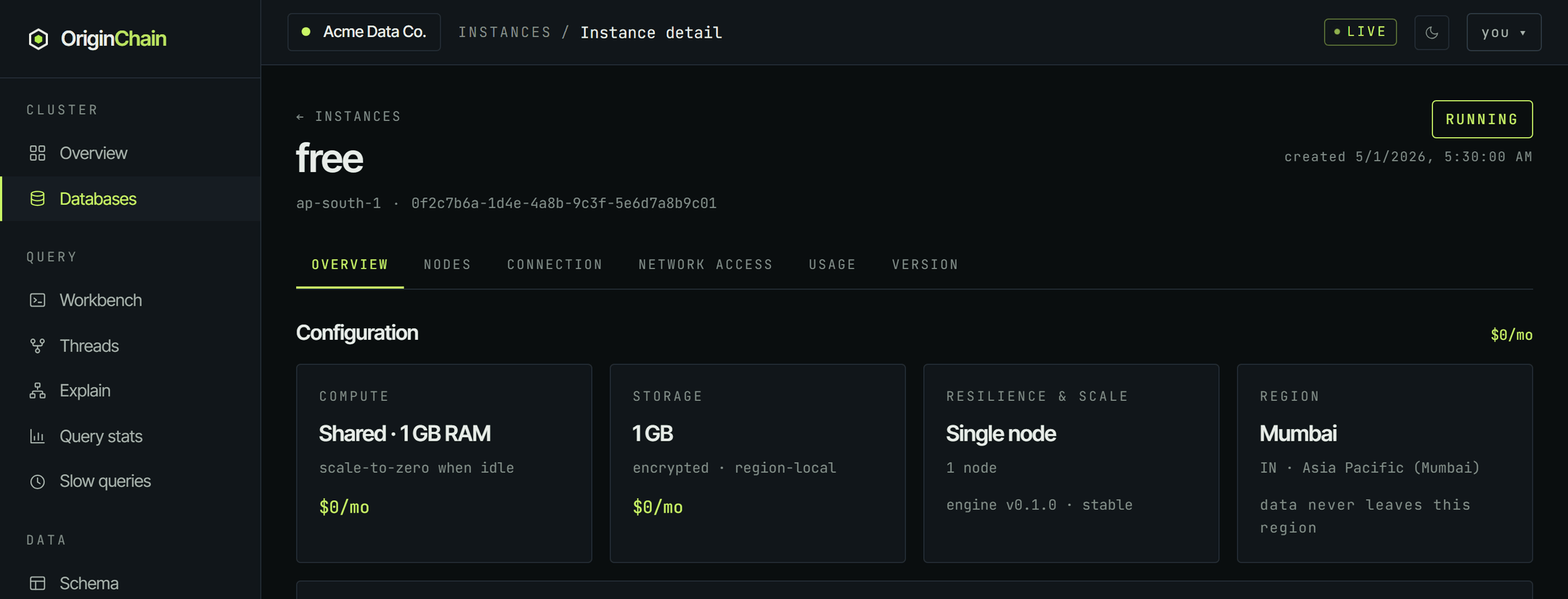
From here, pick up the Quickstart - it takes those credentials and walks you through defining your first table, inserting a row, and running SQL, vector, full-text, and graph queries against it.
Prefer a client library? Install one from SDKs (Python, TypeScript, Go). Prefer clicking over code? The dashboard walkthroughs register a schema, insert a row, and run every query shape without leaving the console.
Good to know.
The free database scales to zero when it's not being used. You don't have to do anything to wake it - the first request after an idle stretch wakes it automatically, so that request can take a moment longer than usual.
Each account gets one free database. If you need more room, more throughput, or an always-on instance, launch a dedicated instance from the same Databases page - the pricing page lets you build and price a configuration live.